
Chapter 4 · 4.9
Deleting or renaming a domain
On the Domains page you can delete a domain from your package, temporarily switch it off (suspend it), or give it a different name. Do this carefully: deleting a domain means losing its website, email addresses and mail.
Deleting a domain
- In the menu, under Account Manager, click Domains.
- Tick the domain.
- Click Delete (1) and confirm.
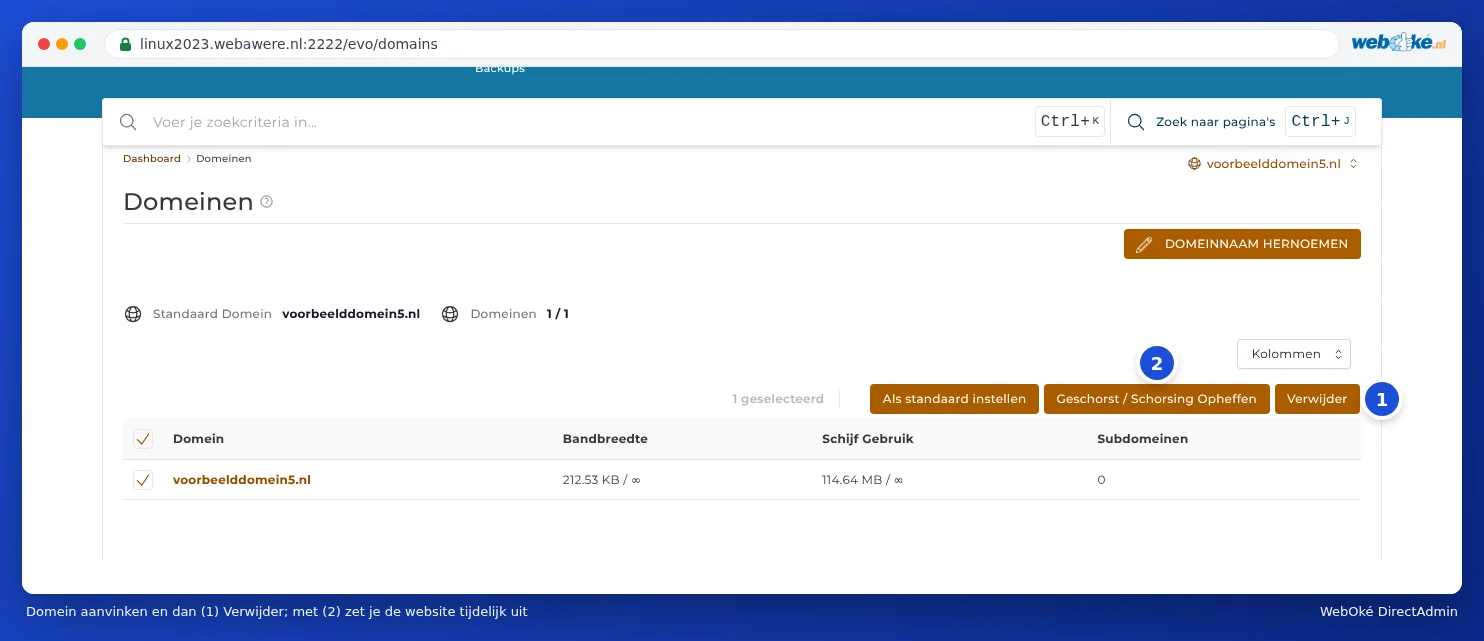
Please note: Everything belonging to the domain is deleted: the folder with the website, the email addresses with all mail, the DNS zone, the subdomains and the pointers. Make a back-up first (see Backup and Restore: creating your own backup in DirectAdmin). Don't delete the main domain (default domain) of your package yourself: your package is linked to it. If you want to do this, please contact us first.
Want to move a domain to another package, or remove it from your package entirely? It's better to use My WebOké for this (see Can I also do this in My WebOké? Domains per package and Forwarders). That way our administration and the DNS stay correct.
Temporarily switching off a domain
Use Suspend / Unsuspend (2) to temporarily switch off a domain without deleting anything. The website is then unreachable. Click again to switch the domain back on.
Choosing a different default domain
Tick a domain and click Set as default. That domain then appears at the top of the domain selector. Nothing changes about the website or the email.
Renaming a domain
Moving forward under a new domain name, and want to keep everything? Then you can rename the domain.
- On the Domains page, click RENAME DOMAIN in the top right.
- Under Old Domain, choose the domain that will get a new name.
- Under New Domain, enter the new domain name.
- Click SAVE.
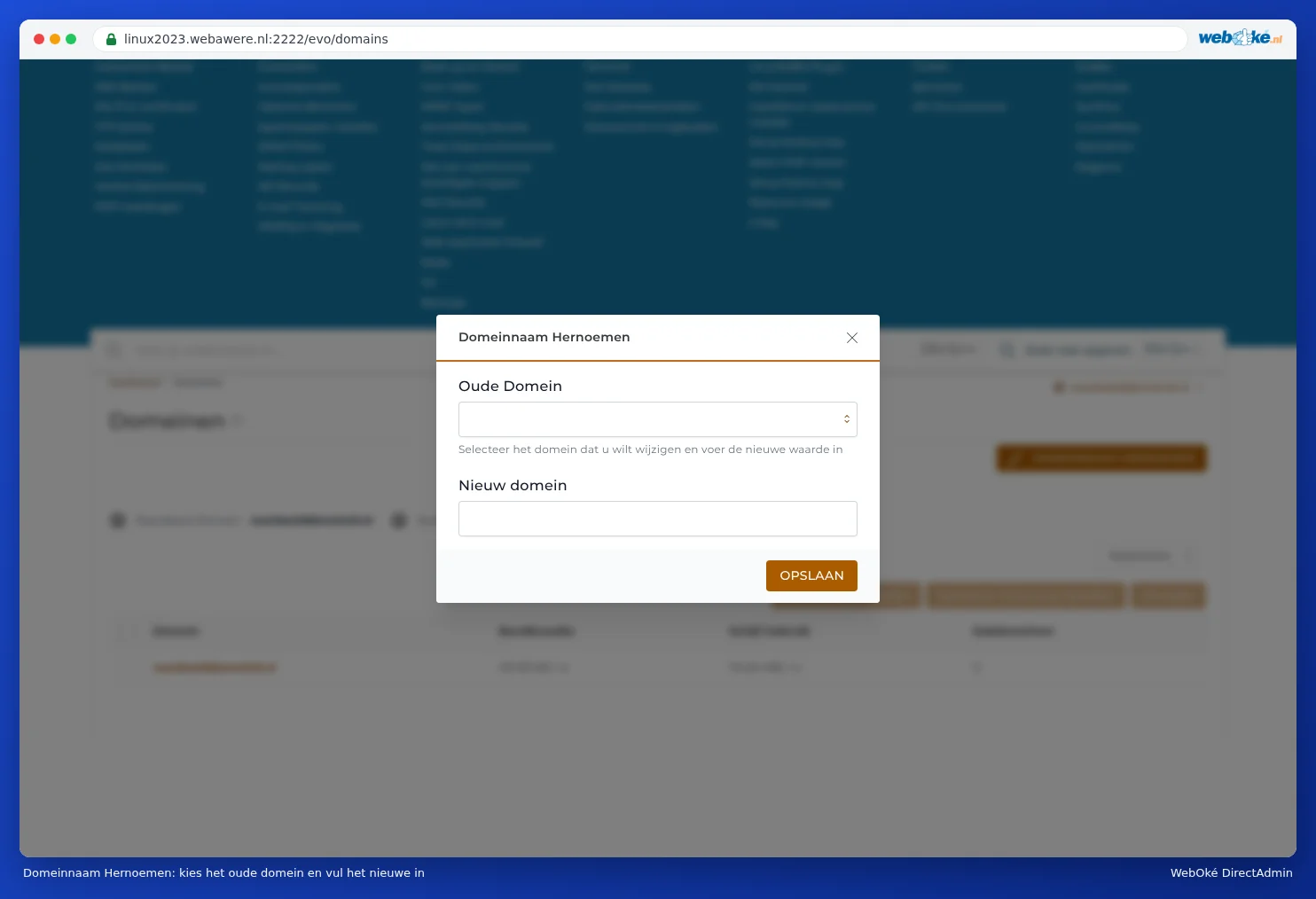
DirectAdmin moves the website, email addresses and DNS over to the new name. The old name will no longer work afterwards.
Please note: After renaming, you'll need to update a few things yourself: the settings of your email programs (the email address and username change along with it), the website address in WordPress, and a new SSL certificate (see Requesting a free Let's Encrypt certificate). If this concerns your main domain, please discuss it with us first via a ticket. We'll then also update your package in My WebOké.
Tip: Want the old name to work as a redirect to the new one? Then don't rename it, but add the new name and turn the old one into a pointer or redirect (see Domain pointers: a second domain name for the same site and Site Redirects: forwarding a domain or page).