
Chapter 9 · 9.8
Tasks: lists, deadlines and subtasks
With the Tasks app, you keep track of to-do lists, on your own or together. A task list in your Nextcloud is a kind of calendar; that's why tasks with a date also show up in Calendar, and you can use them on your phone (see Tasks on your phone: Reminders on the iPhone, Tasks.org on Android).

Creating a list
Click Add list on the left (3), type a name and choose a colour. At the top, you'll find smart lists (4) that your Nextcloud fills in automatically: Important (starred tasks), Today, Week, All, Current and Finished.
Adding a task
- Click the list on the left (2).
- Type the task in the Add a task to field (1) and press Enter.
- Click the task to open its details.
Deadlines, priority and notes
On the right, you'll see the task's details:

- Due date (1): when the task needs to be finished. Use Set start date to also choose when you start.
- Priority (2): from low to high. A star in the list marks a task as important.
- % Done (3): how far you've got.
- Notes (4): on the tab next to Details, you write extra explanation, for example exactly what needs to be done.
- Add reminder (5): get a notification.
Tick off a task using the checkbox in front of it. Finished tasks disappear from the list; at the bottom of the list, you can load them again.
Subtasks
Does a task consist of several steps? Open the menu with the three dots next to the task and choose Add subtask. Subtasks appear indented under the main task. You can also drag a task onto another task with your mouse to turn it into a subtask.
Your week in one overview
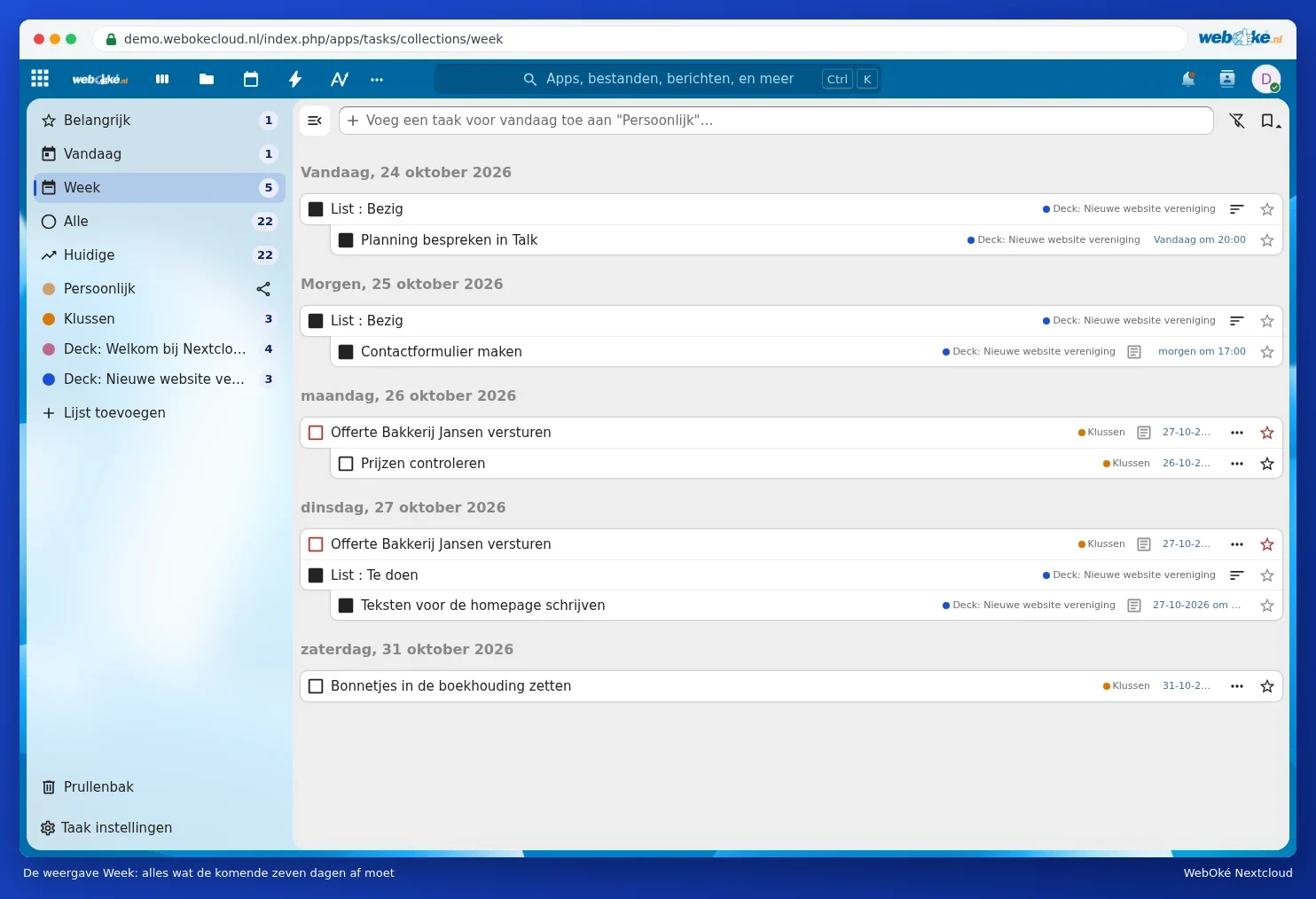
Click Week to see everything due in the coming seven days, from all your lists.
Sharing a list
Click the share button next to the list to share it with someone in your Nextcloud. That way, you can work together in a single list, for example for shopping or household chores. For how this works with a mix of iPhones and Android phones, see Tasks on your iPhone and Android at the same time.
Tip: do you use Deck for your projects? Cards with a due date also show up in your Calendar and here in Tasks, in a list named after the board (see Deck: boards, lists and cards, and using them together and A Deck board with deadlines in your calendar).