
Chapter 5 · 5.3
Having files sent to you: file drop and file request
Watch it in a short video
Do you want a customer, supplier or family member to drop files for you, without them seeing the rest of your files? Then use a file request or a link with File drop. The other person can then only upload.
Creating a file request
- In Files, go to the place where the request should be created.
- Click New and choose Create file request.
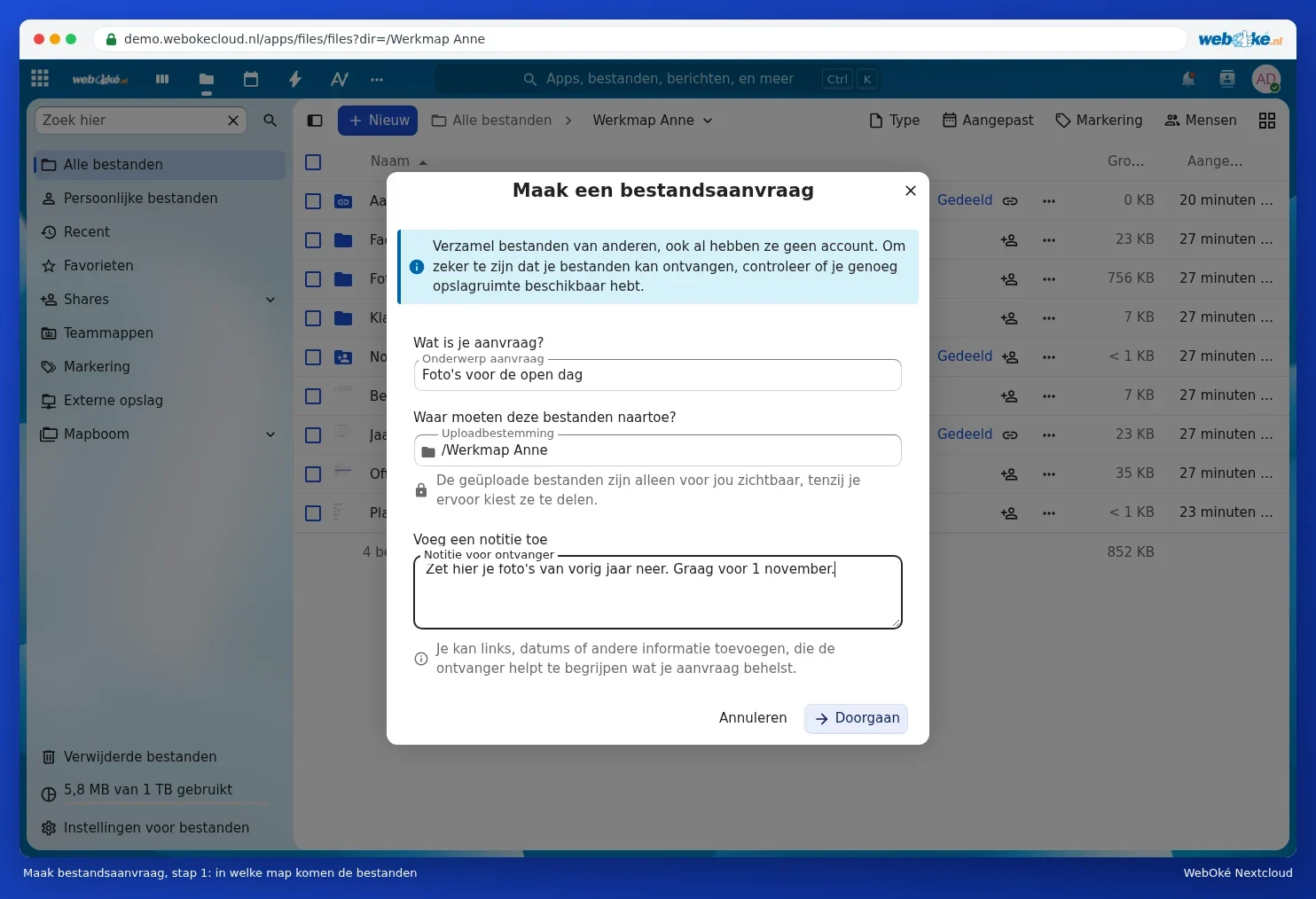
- Under Request subject, fill in what you're asking for, choose the folder where the files will end up under Upload destination, and write what you need under Note for recipient.
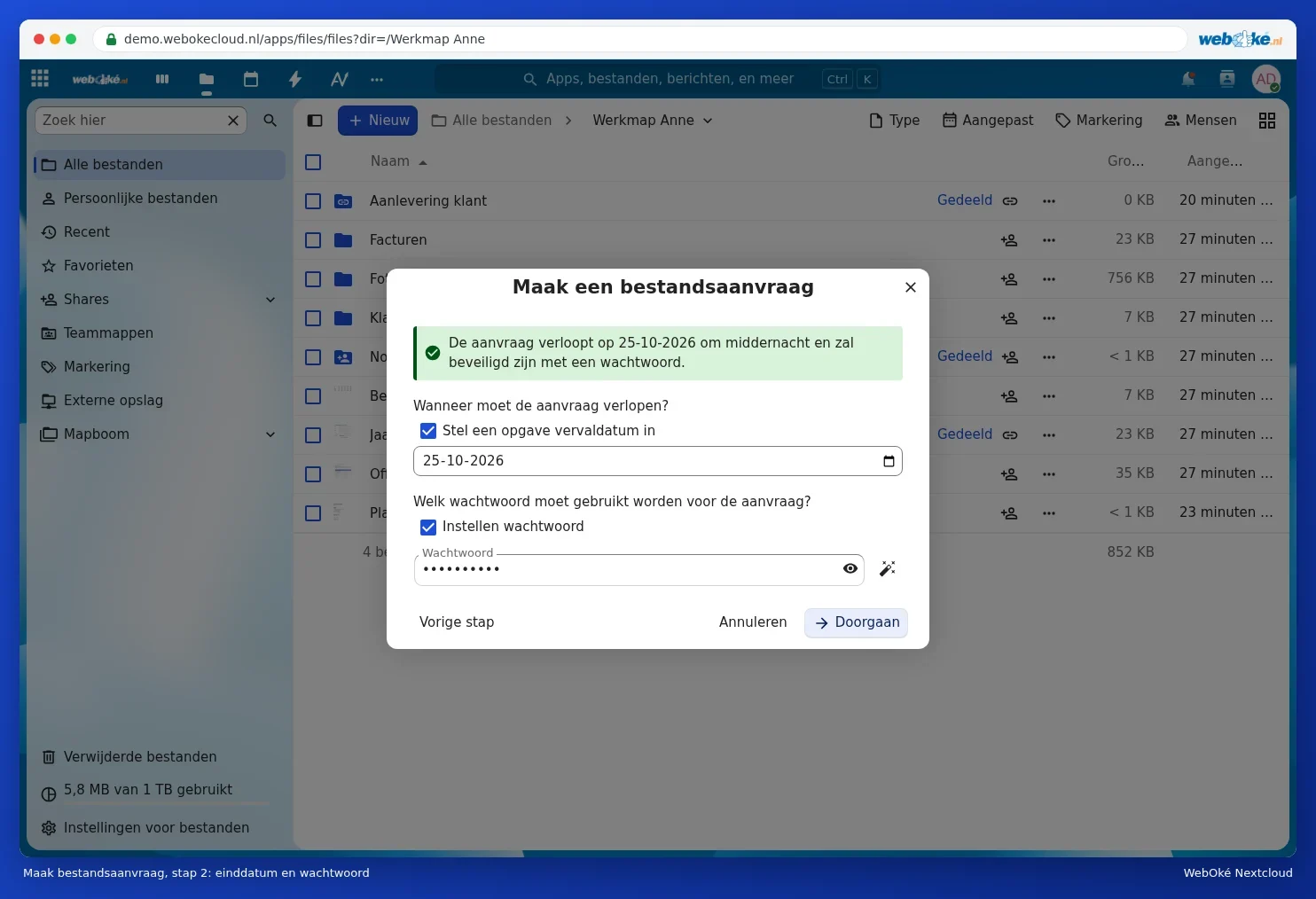
- Click Continue. Tick Set a submission expiration date for an end date and, for sensitive documents, Set password. Nextcloud can also come up with a strong password for you.
- Click Continue. The request has now been created. Copy the Share link using the button on the right of the field and send it to the other person yourself. Close the window with Close.

Please note: under Send link via email, you can also fill in email addresses. Nextcloud will then send the link by email itself. If you want to be sure the email arrives properly and is recognisable as coming from you, it's better to copy the link and send it yourself.
Or: sharing a folder with File drop only
You can also create a public link on a folder (see Creating a public link: viewing, editing, password, expiration date and download limit) and choose File drop under the permissions. The result is the same: whoever opens the link can only drop files.
What does the uploader see?
The other person opens the link in their browser. They see your note and the Uploading button, or they can drag their files into the window. They can't see what's already in the folder, nor what other people have uploaded.

The files appear in your chosen folder. In Activity, you can see what was uploaded and when, see Chat and activity for a file.
Tip: stop the request once you have everything (in the Share tab of the folder, with Unshare in the link's menu), or let it expire automatically with an end date. Have a client submit files with a password-protected file request with an expiry date has a worked example for customers.
Please note: what others upload counts towards your storage. See Anyone using shared files uses your storage.