
Skip to content

Cookie settings

Choose which kinds of cookies you allow. You can change your choice at any time via Cookie settings at the bottom of every page. Privacy statement

Necessary

Always on

Needed to log in, keep your cart and remember your choices. These are always on.

Which cookies?
  • weboke_sessie, weboke_klant, weboke_remember: your session and staying logged in
  • weboke_basket: your cart
  • wkBtwIncl: showing prices with or without VAT
  • wok_cookies: your cookie choice, 12 months

Measures which ad leads to a visit or order, so we do not pay for ads that do nothing.

Which cookies?
  • Google Ads via Google Tag Manager (_gcl_au, _gcl_aw), up to 90 days
  • OpenAI Ads, ads in ChatGPT
  • wok_aff: which partner referred you to us (affiliate programme), 60 days

4.6

Country and language

Each country has its own site, with prices and VAT for that country.

View

Creating a new document, spreadsheet or presentation

You create a new file in the folder where you want to keep it. So first open the right folder.

Step 1: click on New

Click the New button (1) at the top. A menu opens. Choose what you want to create:

  • New document (2): a text document, such as a letter or quote (docx).
  • New presentation (3): a presentation with slides (pptx).
  • New spreadsheet (4): a spreadsheet, such as a budget (xlsx).
  • New PDF form (5): a fillable PDF form.
The New menu with the options document, presentation, spreadsheet and PDF form
Choose what you want to create

Please note: the Text option creates a simple text file (md) for the Nextcloud Text app, not a Word document. So for letters and quotes, choose New document.

Step 2: give your file a name

Type a clear name (1) and click Create (2). Leave the extension at the end, such as .docx for a document, .xlsx for a spreadsheet and .pptx for a presentation. This is how Nextcloud recognises what type of file it is.
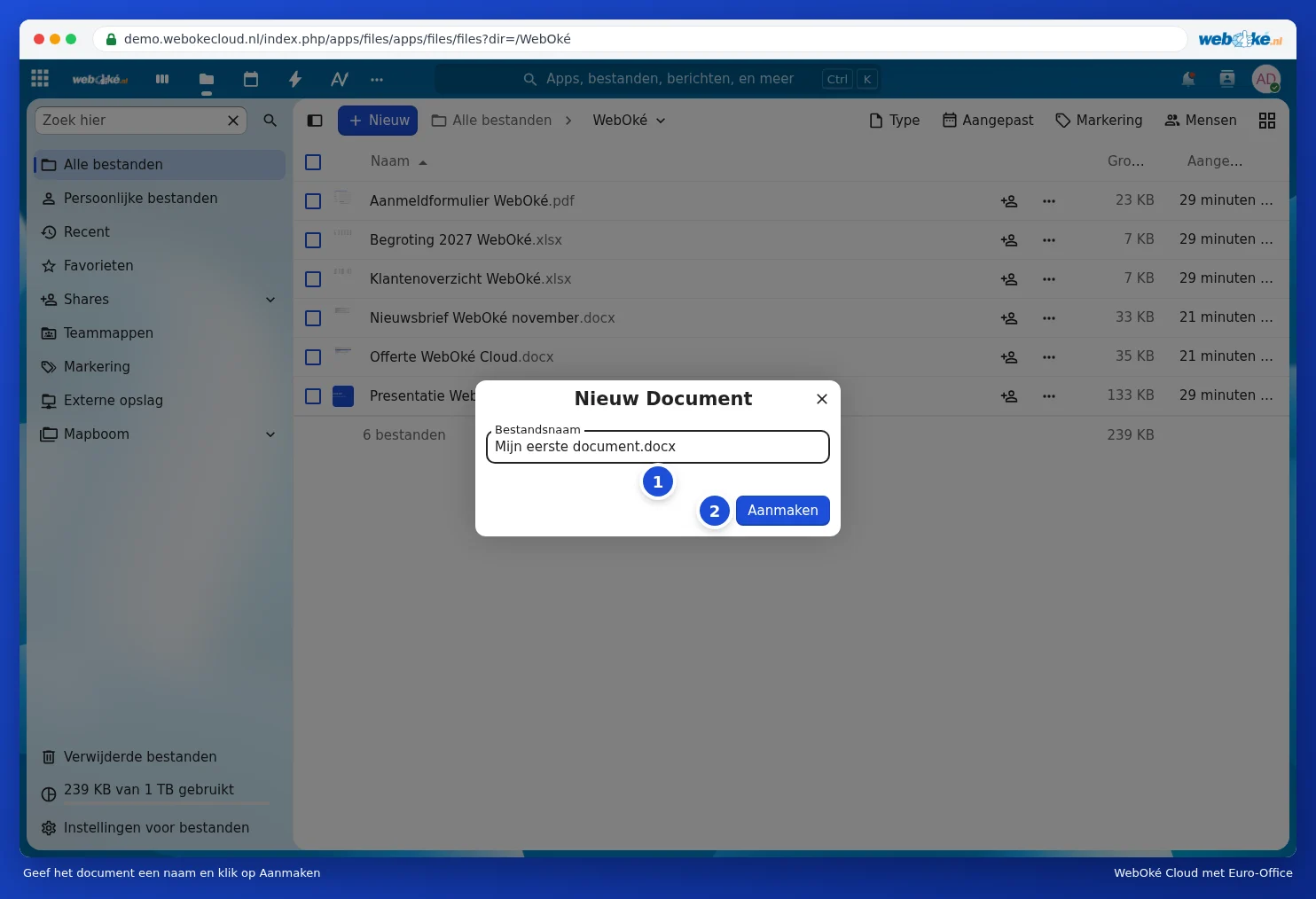
The window to name the new document with the Create button
Give the document a name

Step 3: start writing

Your new file opens directly in Euro-Office. You can start right away. Everything you do is saved automatically.

A new, empty document opened in Euro-Office
Your new document, ready to get started

One moment…

Set up your domains

For each domain, arrange the nameservers, the link to your hosting and who becomes the owner.

Loading your domains…