
Chapter 15 · 15.3
VLOOKUP returns #N/A: here's how to fix it
This is probably the most frequently asked spreadsheet question in the world: the customer really is in the list, but VLOOKUP still returns an error. In Euro-Office that error is called #N/A. It means: not found. Below are the causes, from most common to least common.
1. Hidden spaces
In our example, cell A3 contains "Kapsalon Knip " with a space after it. To you it looks the same, but not to the spreadsheet. This often happens with data you've copied from a website, an email or an export.
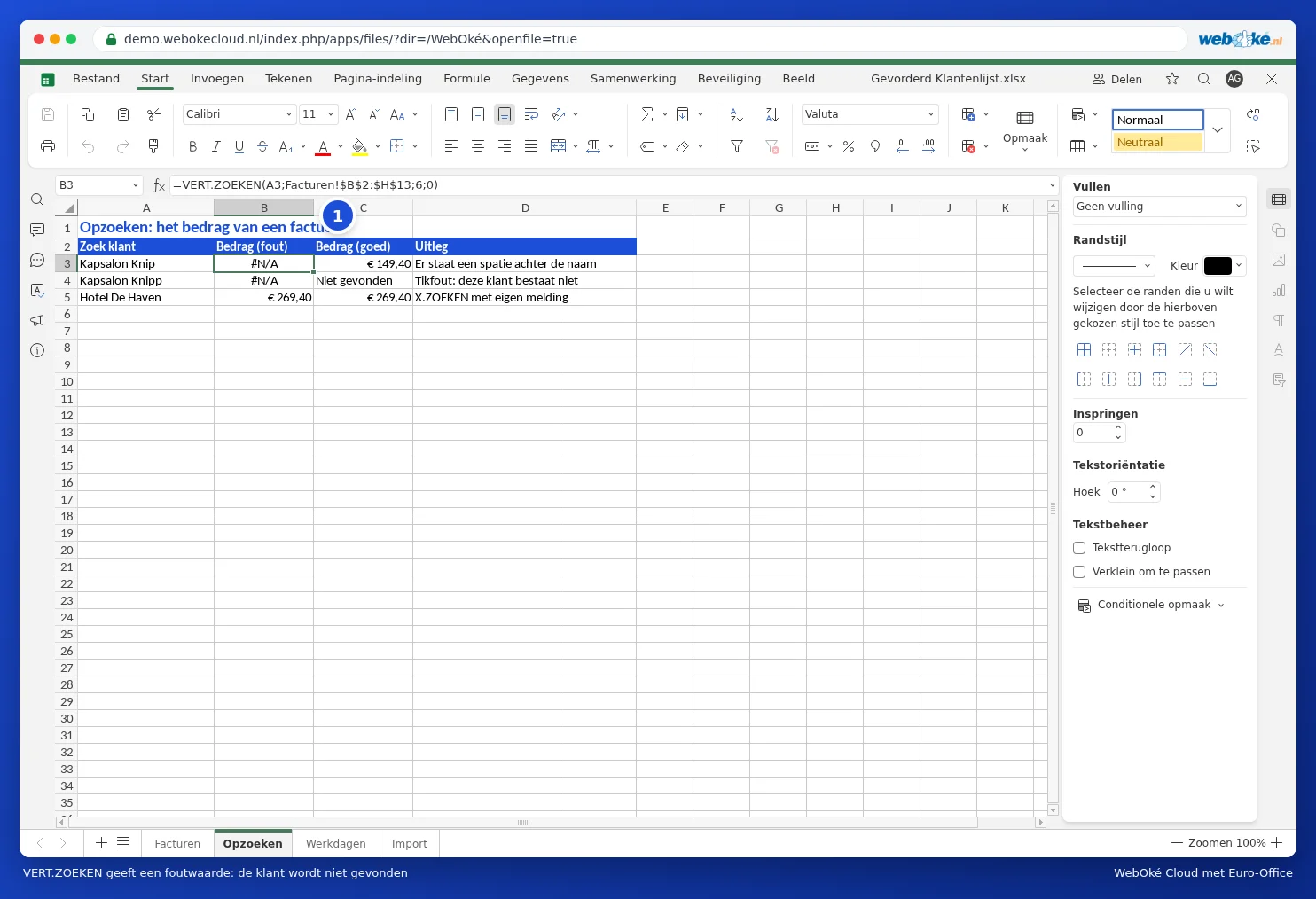
Solution: let TRIM remove the spaces first. =VLOOKUP(TRIM(A3),Invoices!$B$2:$H$13,6,0) does find the customer.

If the list comes from a web page, it may contain "hard" spaces that TRIM doesn't recognise. In that case, use SUBSTITUTE(A3,CHAR(160)," ") and possibly CLEAN for invisible characters.
2. You're not searching for an exact match
The fourth part of VLOOKUP must be 0 (or FALSE). If you leave it out, Euro-Office looks for an "approximate" match. That produces strange results or #N/A if the list isn't sorted.
Please note: don't type FALSE without brackets in Euro-Office, as you might be used to doing in Excel. Euro-Office doesn't recognise that word as a logical value. VLOOKUP will then still search "approximately" and return the wrong amount without showing an error. Use 0, FALSE or FALSE().
3. The table shifts when you drag the formula down
If you drag the formula down, B2:H13 shifts along to B3:H14 and the top customer falls outside the range. Add dollar signs: $B$2:$H$13. Press F4 while typing to add them quickly.
4. Number versus text
If you're searching by a customer number or postcode, both sides need to be the same type of value. A number stored as text is aligned to the left of the cell, while a real number is aligned to the right. Make both columns match via the number format (see Formatting numbers, dates and currency), or search as text: =VLOOKUP(A3&"",...).
5. The lookup column isn't on the left
VLOOKUP only searches in the first column of the range. If you want to search by customer name and that's in column B, the range must start at B (B2:H13, not A2:H13). If the answer is to the left of the lookup column, use XLOOKUP instead: see XLOOKUP: looking up to the left and with your own message.
A neat message instead of #N/A
Does the value really not exist, for example because of a typo? Catch the error: =IFNA(VLOOKUP(A4,Invoices!$B$2:$H$13,6,0),"Not found"). In the case of a typo such as "Kapsalon Knipp" you'll then see "Not found", as in C4 of the example.
Tip: test whether the value itself is the problem with =MATCH(A3,Invoices!$B$2:$B$13,0). If that also returns #N/A, the problem lies in the values (spaces, text or numbers), not in your formula.