
Chapter 6 · 6.5
Changing your package (upgrade or downgrade)
Do you want a bigger or smaller hosting package? You can arrange this yourself on the product page. You don't need to reinstall anything: your website, mail and domains stay exactly as they are.
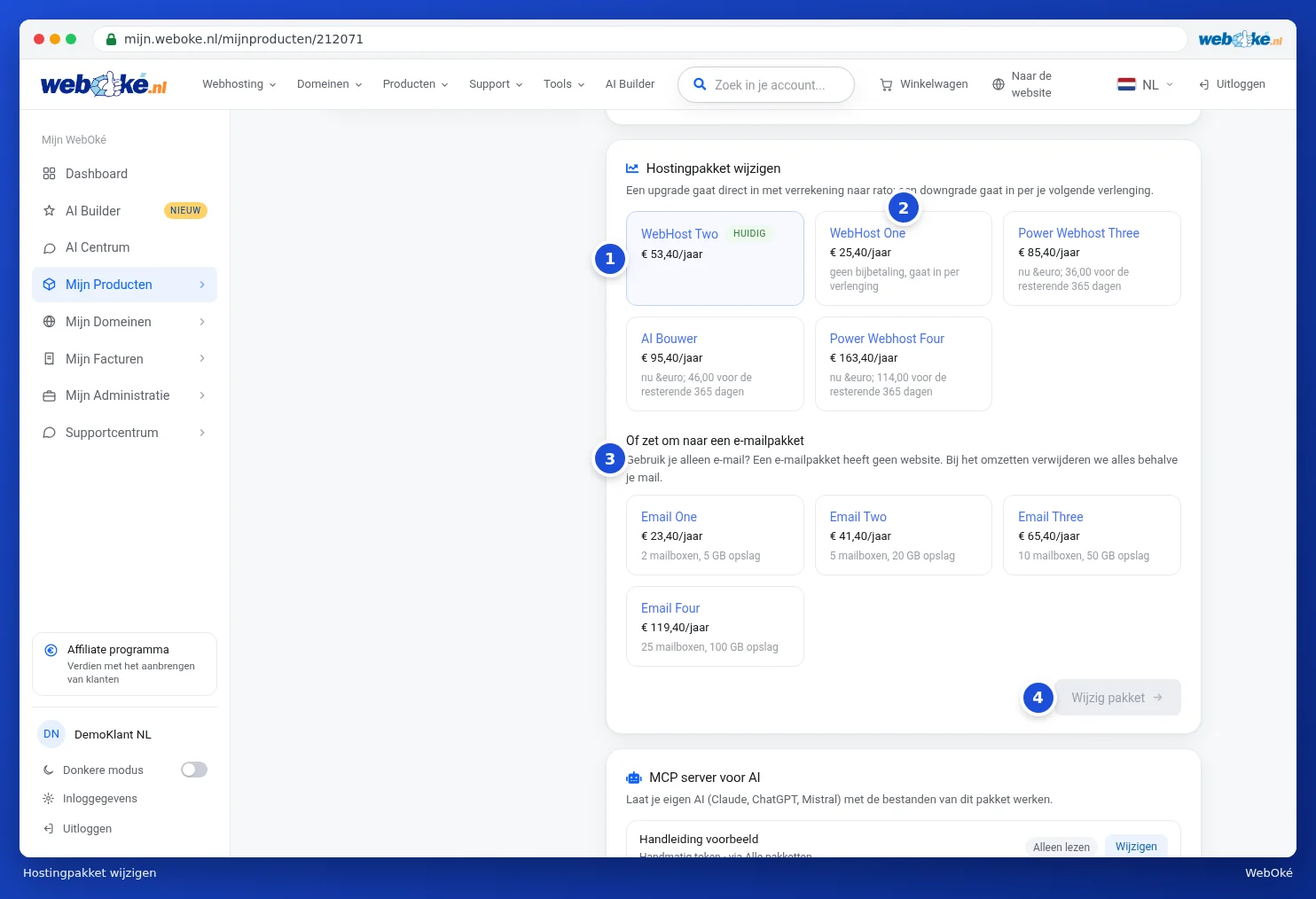
How to change your package
- Open the product page for your package and scroll to the Change hosting package card.
- Your current package has the Current label (1). The other packages appear next to it (2). Each tile shows the price per period and what you'll pay extra for the rest of your current period, or whether there's no extra charge.
- Click on the package you want. Below it, you'll see what the change will cost (2 in the second image).
- Click Change package (4). The button then changes to Confirm change (3 in the second image). The change only goes ahead once you click that.

Upgrade or downgrade
| Upgrade (bigger package) | Downgrade (smaller package) | |
|---|---|---|
| When? | Immediately after payment | From your next renewal |
| Cost | You pay the pro rata difference for the rest of your period | No extra charge, you'll pay the new price from the renewal onwards |
With an upgrade, you'll go to the payment screen after confirming. As soon as the payment is received, your package immediately gets the new space and features.
Please note: if you choose a smaller package, first check whether your website, mail and domains will still fit. The packages page on the website shows what each package includes.
Do you only use email and not a website? Below the packages, you'll find Or convert to an email package (3). This works differently, because your website will then disappear. Read Converting your hosting package to an email package first.