
Chapter 6 · 6.9
Website Manager: installing WordPress and other software
With the Website Manager you can install WordPress or other software on your hosting package in just a few clicks. You can also manage your existing installations here: log in, update, automatic updates, plugins, cloning and deleting. You'll find it in My Products, in the tab bar at the top.
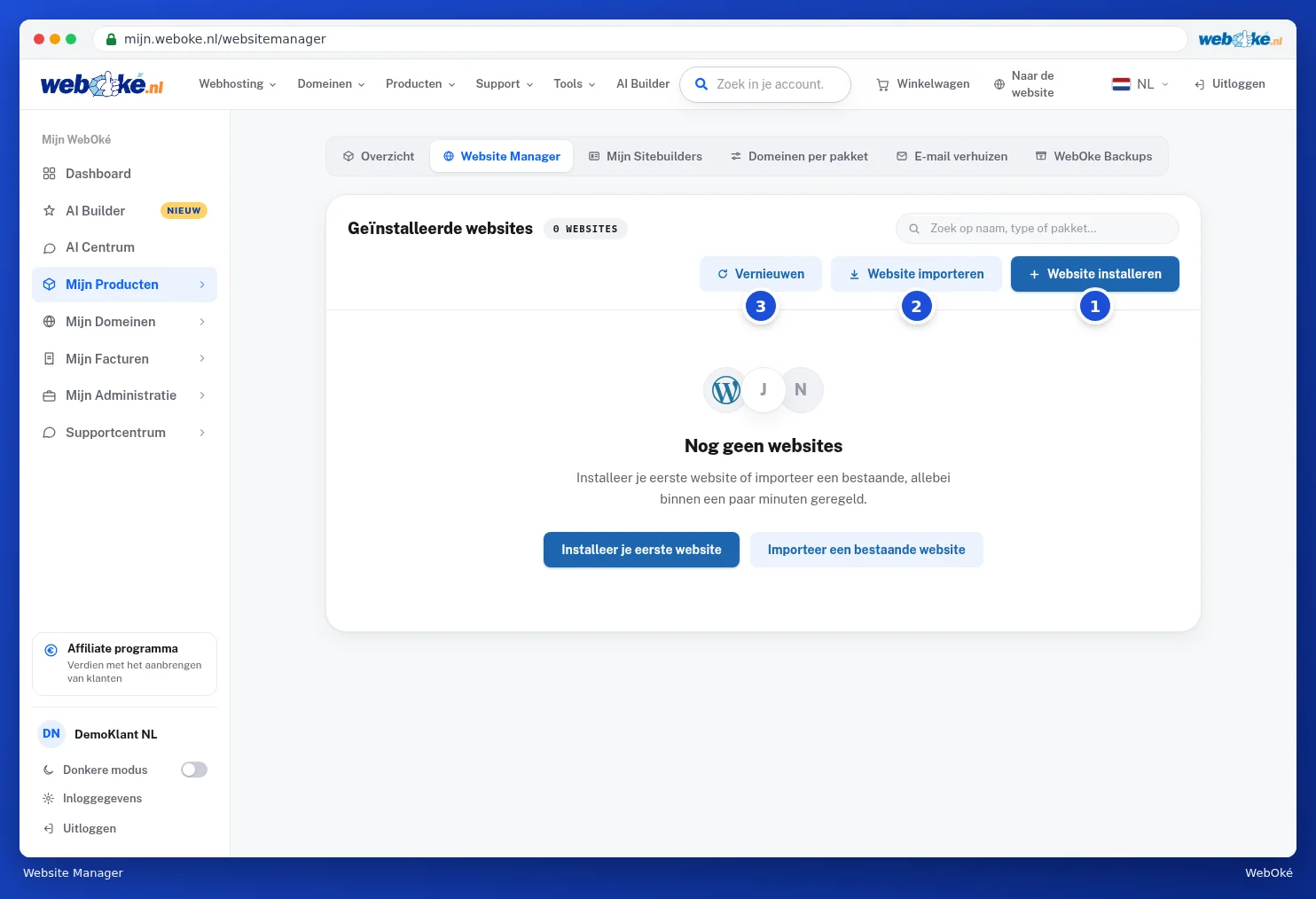
- With Install website (1) you put new software on your package.
- With Import website (2) you add a website that already exists.
- With Refresh (3) you retrieve the list again, for example after you've installed something in DirectAdmin.
Installing a website
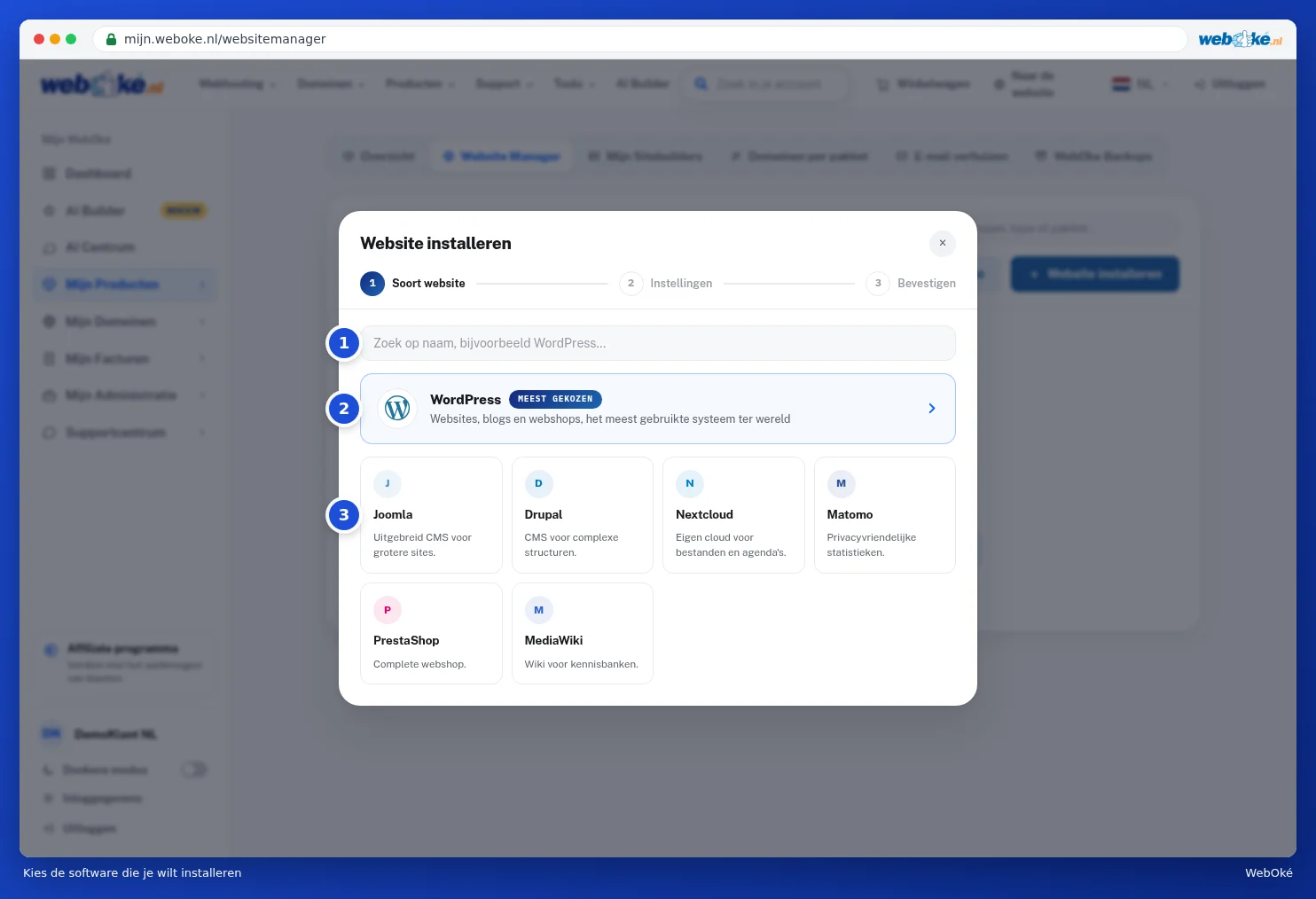
- Click Install website. You'll see the catalogue. Search by name (1), or choose WordPress straight away (2), the most popular system. Below that you'll find, among others, Joomla, Drupal, Nextcloud, Matomo, PrestaShop and MediaWiki (3).
- Choose where the website will go: the domain (1) and optionally a subfolder (2). Leave the subfolder empty if the website should be placed directly on your domain.
- Enter a Site title (3). You can change this later in the software itself.
- Under Admin account, enter a username (4) and your email address. A strong password is already filled in (5). Use Generate again to create a new one. Keep the password safe.
- Under Automatic updates, choose Off, Minor updates only (recommended) or All updates.
- Click Next: confirm (6). You'll see a summary. If everything's correct, start the installation. Your website usually goes live within a minute.

Tip: already have a website on your domain? Then install in a subfolder first to try it out, or create an extra backup beforehand, see WebOké Backups: restoring files.
After installation, you'll see the website in the list. Use Log in to go straight to the website's admin area. Use Admin to adjust the login details, set up automatic updates, manage plugins and themes, create a clone or delete the website. If an update is available, you'll see the Update button.
Importing an existing website

- The website is already on my hosting package (1): for example a WordPress installation you set up yourself. We'll only add it to your Website Manager, nothing changes on the website itself.
- The website is hosted with another provider (2): we'll move the files and database to WebOké. This can be done using your WordPress login details or the FTP details from your old provider. Your old site stays intact until you switch over.
Tip: would you rather not install anything yourself? Have the AI Builder create your website instead, see AI Builder: having your website built for you.