
Chapter 5 · 5.8
DNSSEC and DANE
DNSSEC signs your domain's DNS data. This means no one can secretly redirect visitors to another server. DANE builds on this and adds extra security to the encrypted connection with your mail server.
You'll find these settings via the DNSSEC/DANE tab in My Domains, via the DNSSEC button on the DNS tab, or via Admin at DNSSEC on the domain page. At the top you'll see whether DNSSEC is set up for this domain.
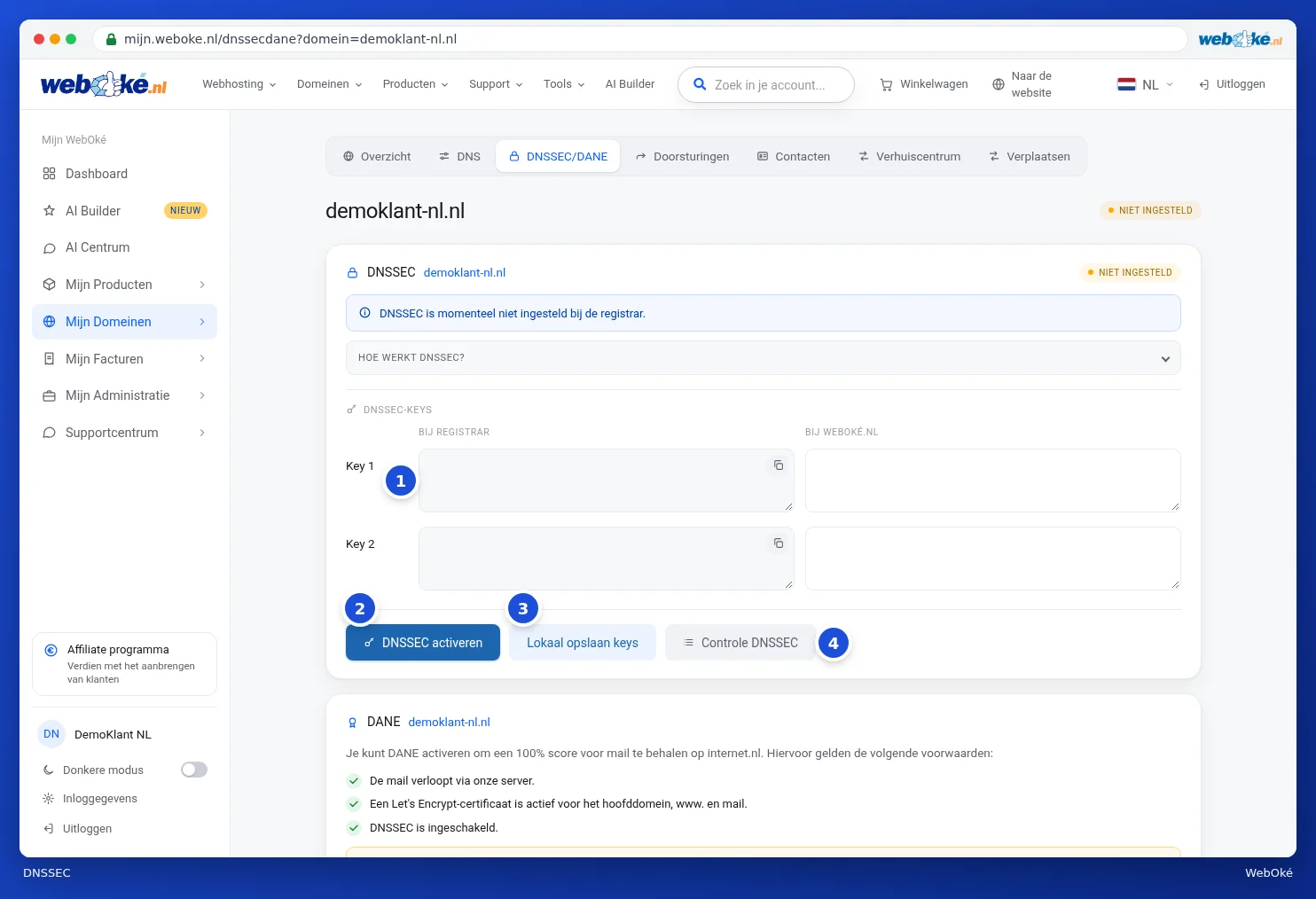
What do you see at DNSSEC?
- How does DNSSEC work?: click here for a short explanation.
- DNSSEC keys: on the left the keys as they appear At registrar (1), on the right the keys At WebOké. Use the copy button to copy a key.
- Enable DNSSEC (2): turns DNSSEC on. If it's already on, you can also turn it off here.
- Save keys locally (3): if you're not using WebOké's nameservers, enter your DNS provider's key on the left and save it here.
- Check DNSSEC (4): checks whether the keys are correct. You can check one domain or all your domains at once.
How to enable DNSSEC
- Check that two keys appear on the right under At WebOké. For a new domain it can take a short while before they appear.
- Click Enable DNSSEC.
Enabling and disabling takes effect immediately, but caching can make it take up to 12 hours before this is visible everywhere. If you still don't see any keys at WebOké after 4 hours, please contact support.
Please note: don't just click Check DNSSEC for all your domains without thinking. DNSSEC is disabled for domains with an error, and if you have many domains the check can take several minutes.
DANE
With DANE, you get a 100% score for mail on internet.nl. You'll see on the same page whether your domain meets the requirements (1):
- Mail runs through WebOké's server.
- A Let's Encrypt certificate is active for the main domain, www and mail.
- DNSSEC is enabled.
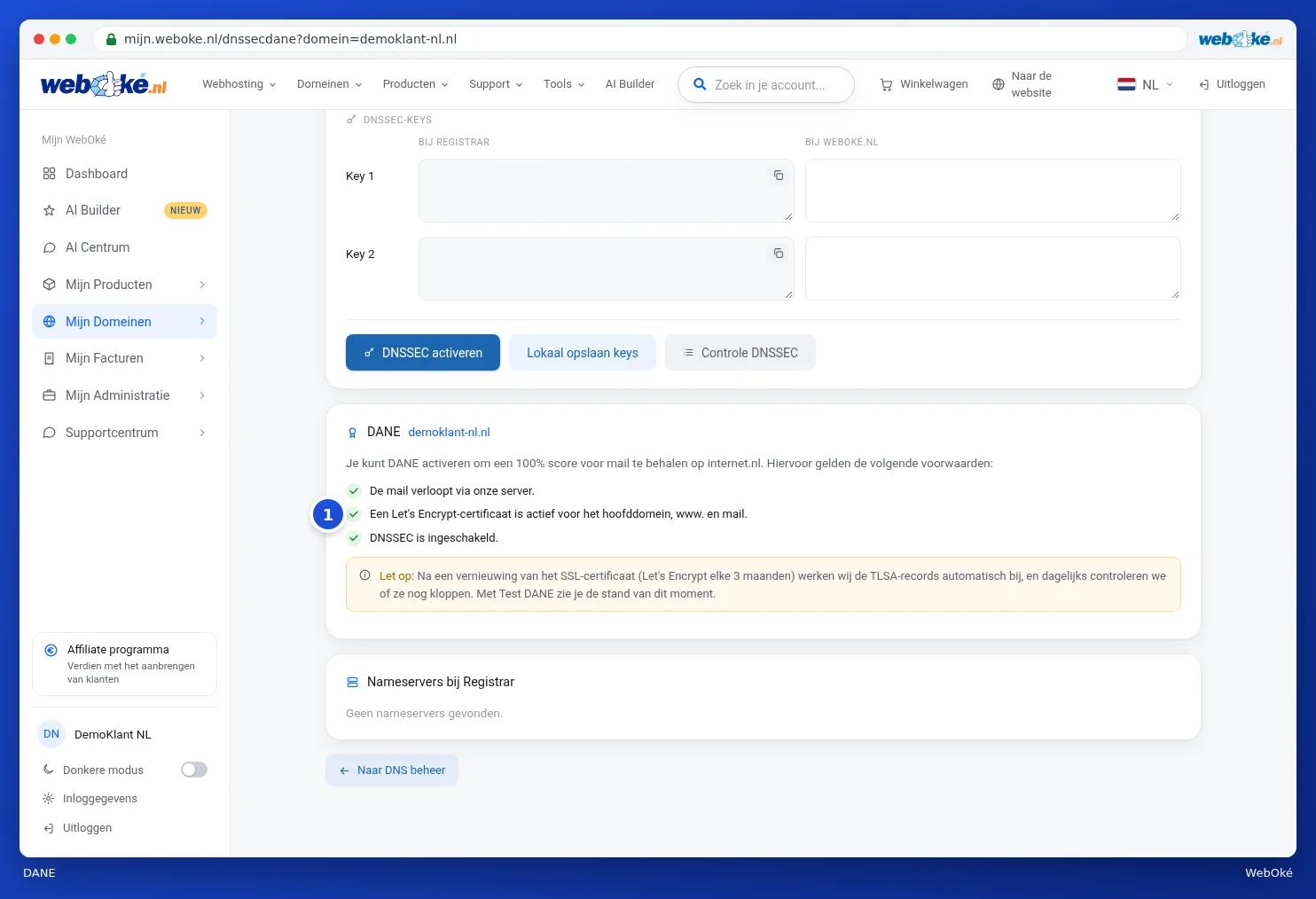
If your domain meets the requirements, the Enable DANE button appears (2). After that, you can use Test DANE to see how things currently stand. Every time the SSL certificate is renewed, WebOké automatically updates the DANE data (TLSA records), and we check every day to make sure it's still correct.
You can read what the Domain / Email health card says about DNSSEC in Domain and email health: checking and fixing.